Connect to a database
SnoutData talks to your databases directly from your machine. Credentials are encrypted by your operating system's keychain and never leave the app.
Add a connection
- Open the connections sidebar (the activity bar on the left).
- Choose New connection.
- Pick a driver. SnoutData supports relational databases (MySQL/Aurora, MariaDB, PostgreSQL, SQL Server, Oracle, IBM Db2, SQLite, DuckDB, Snowflake, Amazon Redshift, SAP HANA, ClickHouse, plus the PostgreSQL- and MySQL-compatible CockroachDB, YugabyteDB, TimescaleDB, Greenplum, TiDB and OceanBase), the document database MongoDB, and the vector database Pinecone. See supported databases.
- Fill in the connection details. Most databases ask for a host, port, database, username, and password. (For SQLite or DuckDB, choose a local database file instead. For Snowflake, enter your account identifier, username, password, and a warehouse/role. For SAP HANA, leave Database blank unless you want to name a specific tenant database. For MongoDB you can paste a
mongodb://connection string. For Pinecone, enter an API key.) - Click Test to verify, then Save.
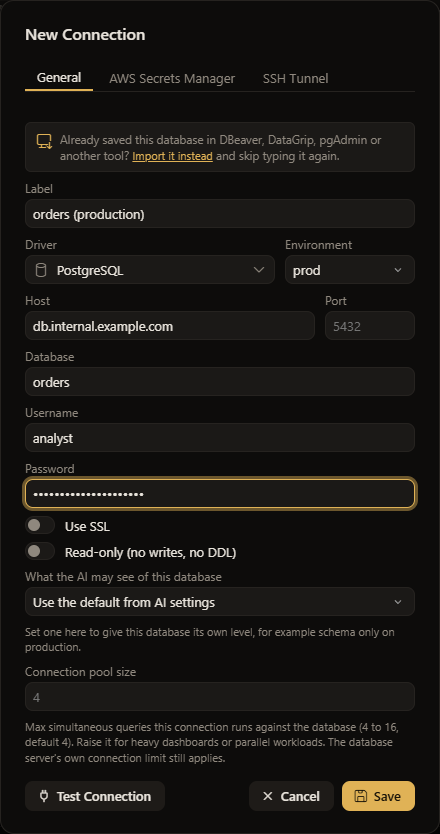
Once saved, expand the connection to browse its contents: databases, tables, and columns, or collections (MongoDB) and indexes (Pinecone).
Connecting over SSH
If your database is only reachable through a bastion host, enable the SSH tunnel options on the connection form and provide the jump host plus a key or password. See SSH tunnels for details.
Flagging production
Mark a connection as production to turn on the destructive-statement guardrail, which
asks for confirmation before running statements like DELETE or DROP without a WHERE
clause. See Security.