MongoDB
MongoDB is a document database. SnoutData connects to it like any other database: its collections show up in the explorer, you can query them with SQL or a native aggregation pipeline, edit documents in the results grid, and manage collections and indexes.
Connect
- Open the connections sidebar and choose New connection.
- Pick the MongoDB driver.
- Provide either a full connection string (
mongodb://...ormongodb+srv://...) or a host, port, and authentication database with a username and password. - Click Test, then Save.
Flag the connection as read-only or production if you want to block writes. See Security.
Browse collections
Expand the connection to see its collections, listed like tables. SnoutData infers a collection's fields by sampling documents, so each collection shows its top-level field names and types. Views appear too. Because documents in a collection can differ, the field list is a best-effort picture of the shape, not a fixed schema.
Query with SQL
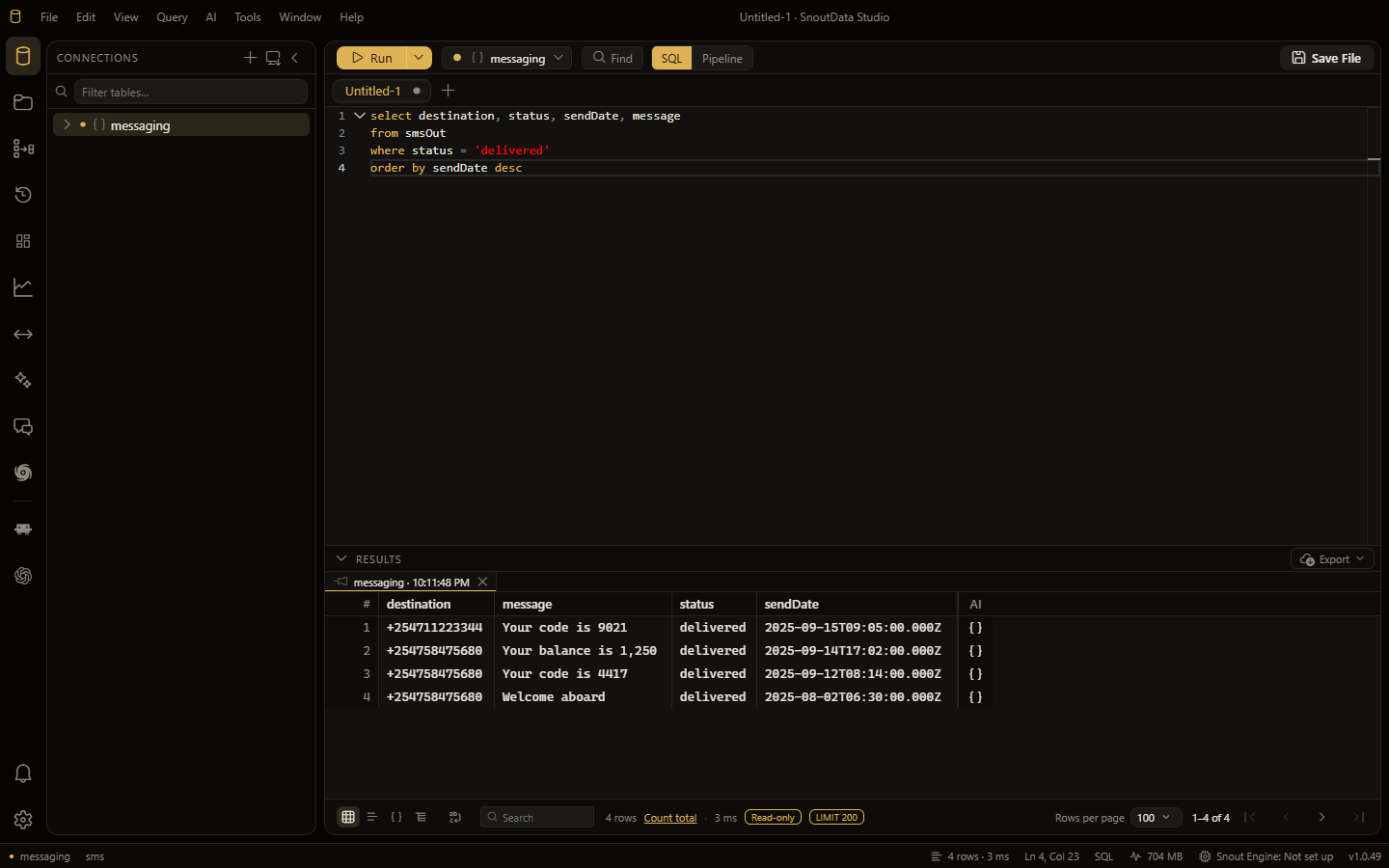
Write SQL against a collection and SnoutData transcribes it to an aggregation pipeline. The common shapes are supported:
SELECT name, email
FROM users
WHERE country = 'US'
ORDER BY created_at DESC
LIMIT 50;
WHERE (including =, !=, comparisons, IN, IS NULL, and LIKE), projections, ORDER BY,
LIMIT / OFFSET, and GROUP BY with COUNT / SUM / AVG / MIN / MAX all translate to
the matching pipeline stages. Anything the offline compiler cannot represent can be translated by
the AI assistant after a confirmation prompt (see querying beyond SQL).
:::tip The editor checks the SQL first Because a document connection compiles your SQL in the app rather than sending it to a database, the editor underlines a statement that will not parse and names the fix where it recognises the mistake. See Syntax checks. :::
:::tip See the pipeline for your SQL Select a SQL statement, right-click, and choose Get Pipeline Translation to insert the equivalent aggregation pipeline as a comment. It is a quick way to learn the pipeline for a query you already know, or to start a native pipeline from it. :::
Write a native pipeline
For the full power of MongoDB, write the aggregation pipeline directly. On a MongoDB connection the editor toolbar shows a SQL / Pipeline switch and a collection picker. Flip to Pipeline and write a JSON array of stages:
[
  { "$match": { "country": "US" } },
  { "$group": { "_id": "$plan", "users": { "$sum": 1 } } },
  { "$sort": { "users": -1 } }
]
The pipeline editor has schema-aware completion for stage operators, the collection's field
names, and collection names (for $lookup). Run it like any query; results land in the same
grid. Switching between SQL and Pipeline keeps both buffers, so you can move back and forth.
Edit documents
On a non-production, writable connection you can edit data straight from the results grid:
- Edit a cell to update that field on the document (
updateOnekeyed on_id). - Insert a new document, or delete one.
Edited values are coerced to the field's inferred type (numbers, booleans, and so on). Editing
requires each row to have an _id. A few limits to know:
- Date, nested-object, and array cells edit as raw strings (an explicit "set to current time" produces a real date).
- A save with several changes is applied one operation at a time, not as a single transaction, so a failure partway through can leave some changes applied. SnoutData notes this before you confirm.
Manage collections and indexes
A MongoDB connection's Properties tab shows the collection's inferred fields and its indexes, where you can:
- Create or drop a collection (the per-database + in the sidebar is New collection).
- Create or drop a secondary index. On a new or empty collection you can type the field names to index by hand.
Each change shows its native command and asks for confirmation before it runs.
Ask the assistant
On a MongoDB connection the AI assistant proposes a native aggregation pipeline instead of SQL, grounded in the connection's collections and fields. Insert it into a pipeline tab and run it. In agentic mode the assistant can run a read-only pipeline for you and read the results.